Infinite Canvas
Welcome to ThoughtFabric's Infinite Canvas - your unlimited creative workspace where ideas flow without boundaries! This powerful feature transforms traditional mind mapping by providing endless space combined with AI-powered intelligence.
Creating Your First Canvas
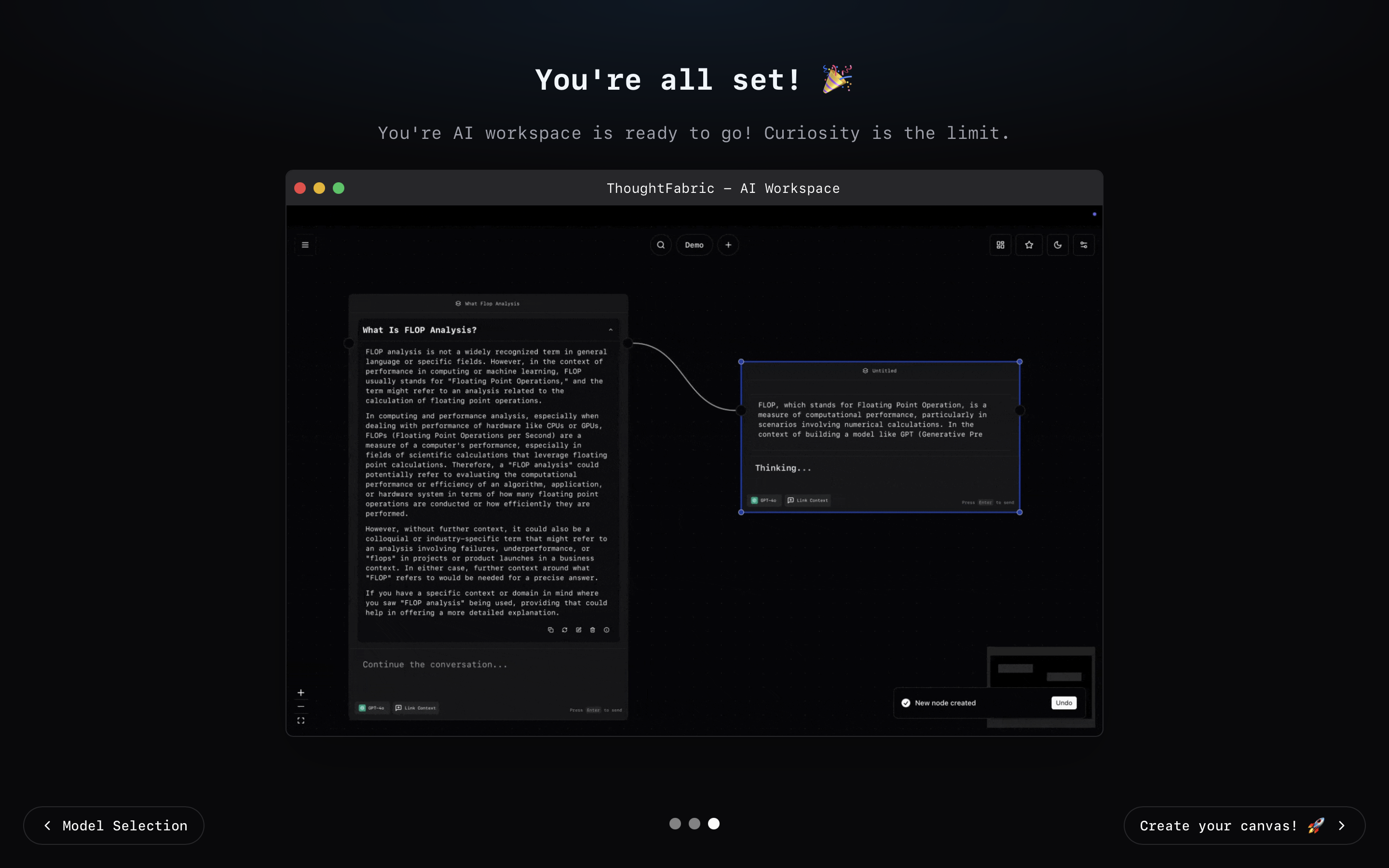
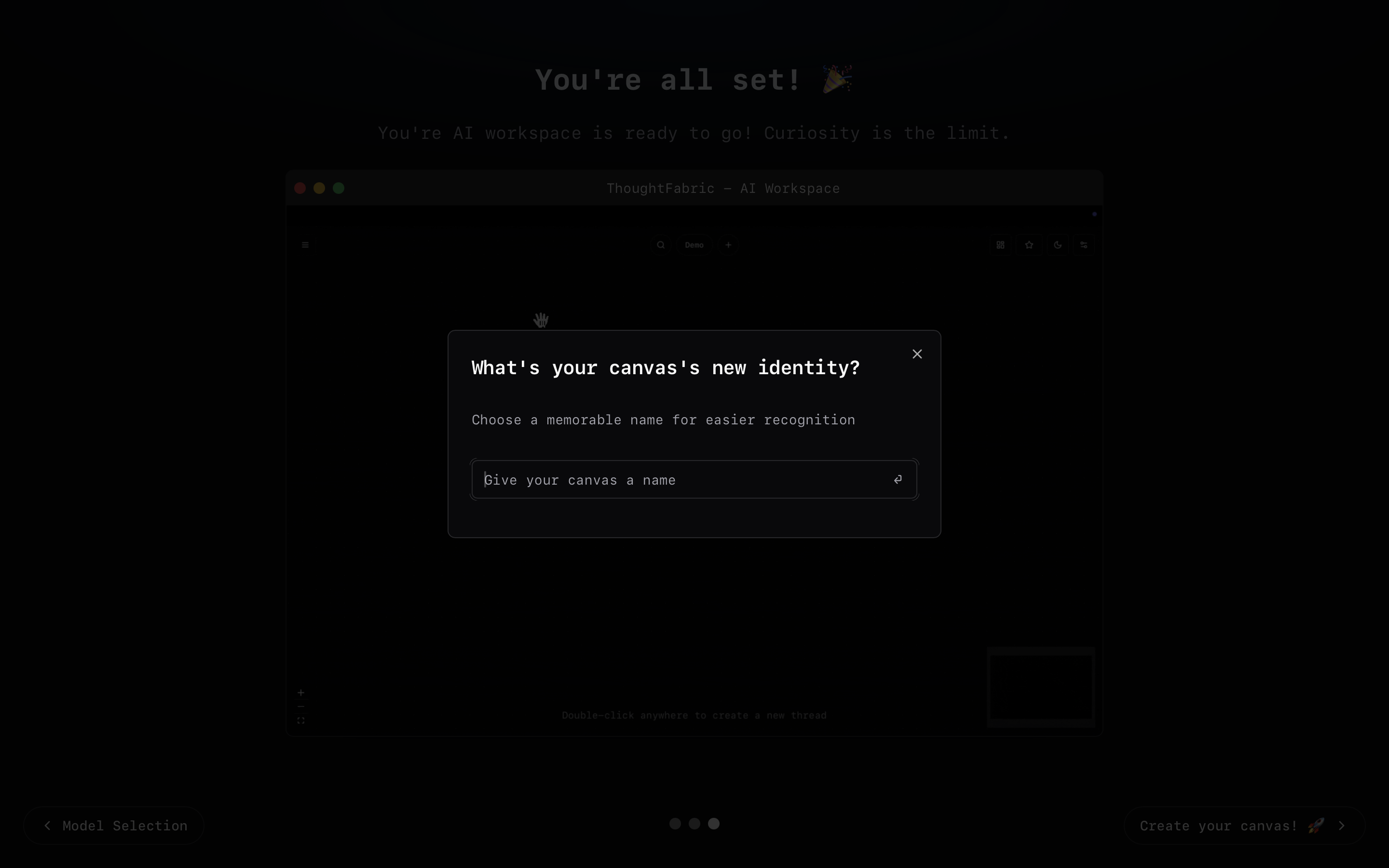
Quick Start
Getting started is beautifully simple:
- Click "Create your canvas" - Your gateway to unlimited creativity
- Enter a canvas name - Give your workspace a meaningful title
- Press Enter - Begin your creative journey instantly
Navigation and Controls
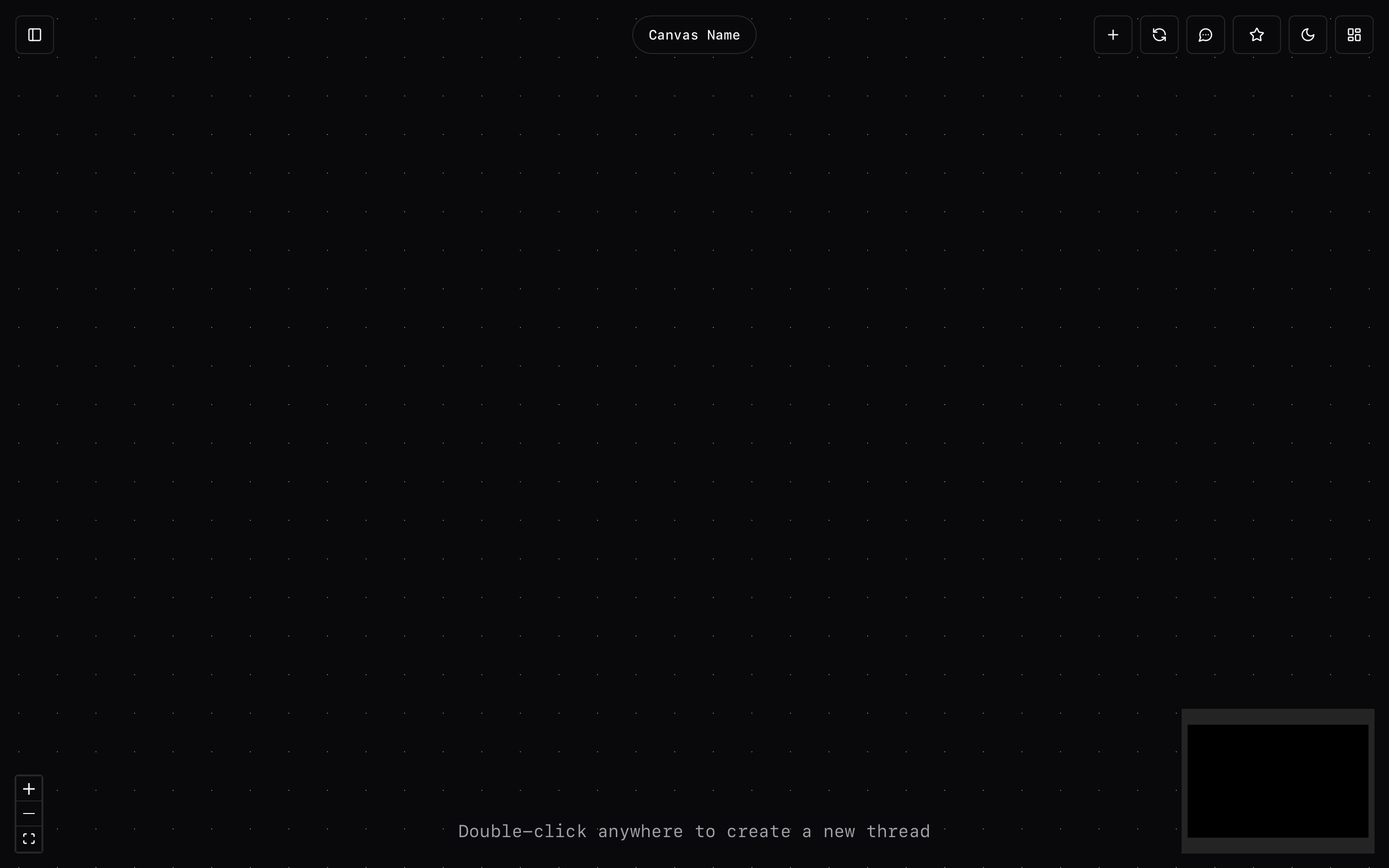
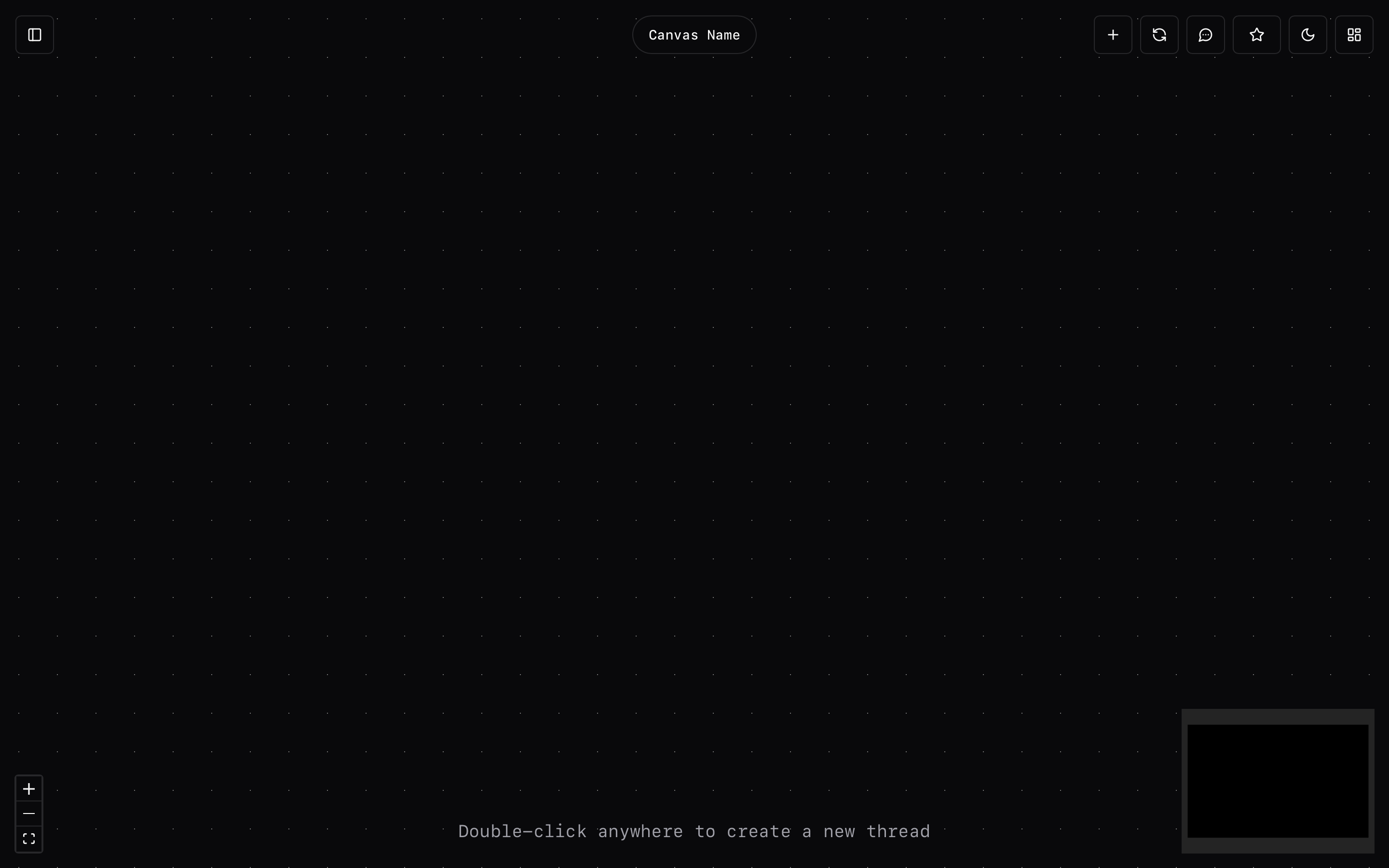
Master your canvas with these strategically placed controls that help you navigate and manage your infinite workspace efficiently.
Bottom Controls

Minimap (Bottom Right)
Your bird's-eye view of the entire canvas:
- Quick Navigation: Instantly locate different parts of your mind maps
- Position Indicator: Shows your current viewing position within the larger canvas
- Overview: Get a sense of your overall mind map structure
Zoom Controls (Bottom Left)
Precise control over your viewing experience:
- Zoom In: Examine details and fine-tune specific elements
- Zoom Out: Get a broader perspective of your entire workspace
- Fit View: Automatically adjust to show your complete mind map structure
Top Bar Navigation

Essential controls for managing your creative workspace:
Canvas Name (Center)
- Edit Name: Click to modify your canvas title
- Save Changes: Use the save icon or press Enter to confirm
- Cancel: Click 'X' to discard any modifications
Quick Access Tools (Right)
Powerful tools at your fingertips:
- Create: Start a new canvas for fresh ideas
- Refresh: Reset current canvas if needed
- Toggle Chat: Switch to full chat interface
- Favorite: Mark canvas for quick access later
- Toggle Theme: Switch between Light and Dark modes
- Dashboard: Return to your main dashboard
Sidebar Management
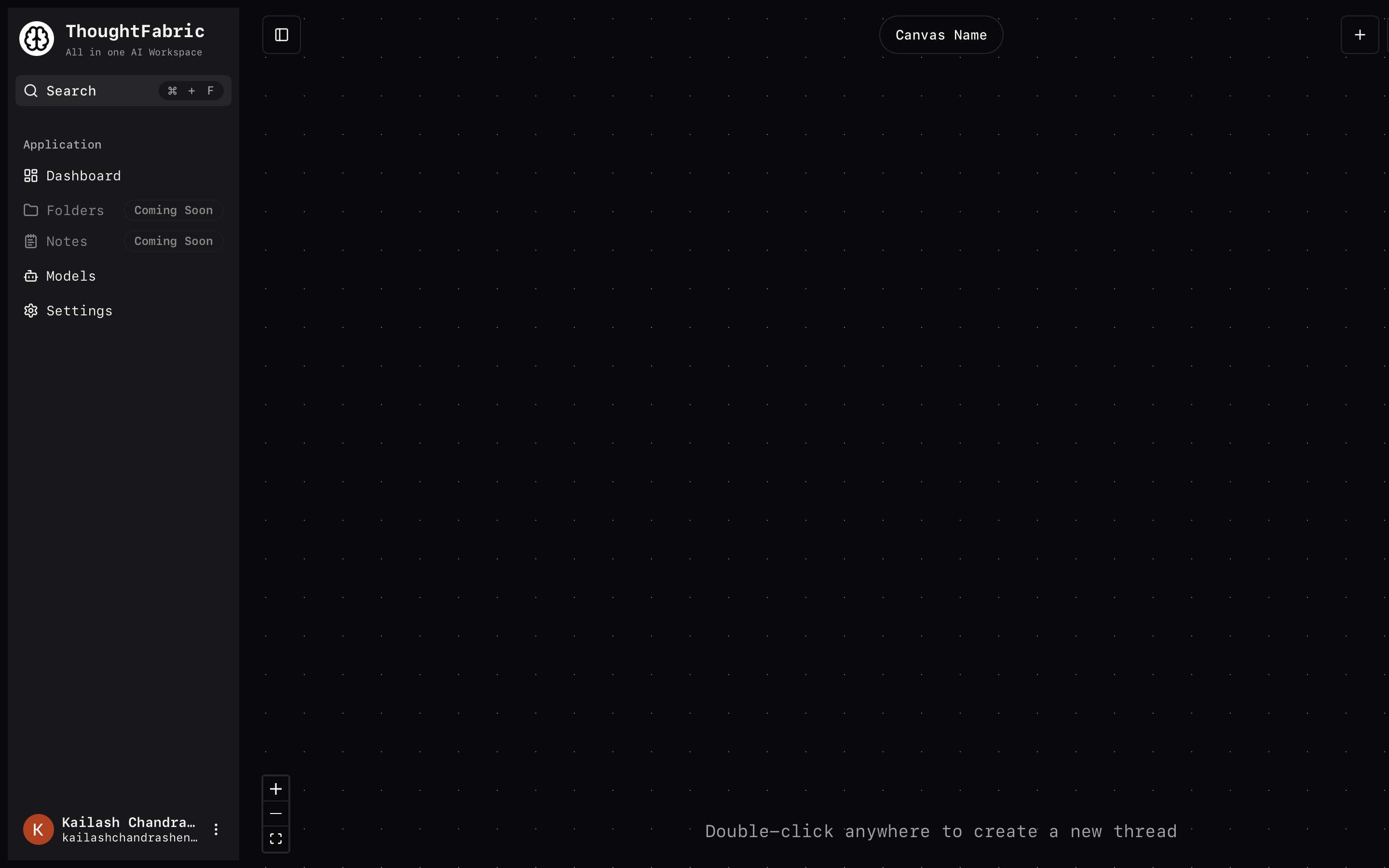
Sidebar Controls
- Toggle Sidebar: Click the sidebar button (Top Left)
- Keyboard Shortcut:
Cmd + B(Mac) for quick access - App Navigation: Access app-wide features and settings
Canvas Management
Auto-Save Feature
ThoughtFabric's intelligent auto-save ensures your creativity is never lost:
- Real-Time Saving: Every change is instantly preserved
- Seamless Continuity: Pick up exactly where you left off
- Focus on Creativity: Never worry about manual saving again
Renaming Your Canvas
Keep your workspace organized with meaningful names:
- Click canvas name in the top center
- Enter new name that reflects your project
- Save changes:
- Click the save icon
- Press Enter
- Or click 'X' to cancel
Deleting a Canvas
We've added safety measures for this important action:
- Click delete option for your canvas
- Confirmation modal appears with clear choices:
- "Yes, delete it forever" - Permanently remove the canvas
- "Never mind" - Cancel the deletion safely
Important: Canvas deletion is permanent and cannot be undone. All content, favorites, and bookmarks within the canvas will be removed.
Pro Tips for Effective Canvas Use
Master Your Workspace
- Use the minimap to maintain orientation in large mind maps
- Utilize keyboard shortcuts for faster navigation (
Cmd + B) - Switch between themes to reduce eye strain during long creative sessions
- Favorite important canvases for quick access from your dashboard
- Name your canvases meaningfully to stay organized as your library grows
Next Steps
Now that you've mastered the Infinite Canvas, explore the powerful features that make ThoughtFabric unique:
Conversational Threads
Add AI-powered conversations to your canvas
Conversation Blocks
Structure your thoughts with intelligent blocks
Contexts
Manage context across your conversations
Ready to Create? Your infinite canvas awaits! Start building mind maps that grow with your imagination and are enhanced by the power of AI.