Download & Setup
Get started with ThoughtFabric AI by following this comprehensive setup guide. We'll walk you through creating your account, downloading the application, and activating your license.
1. Signing Up for ThoughtFabric.ai
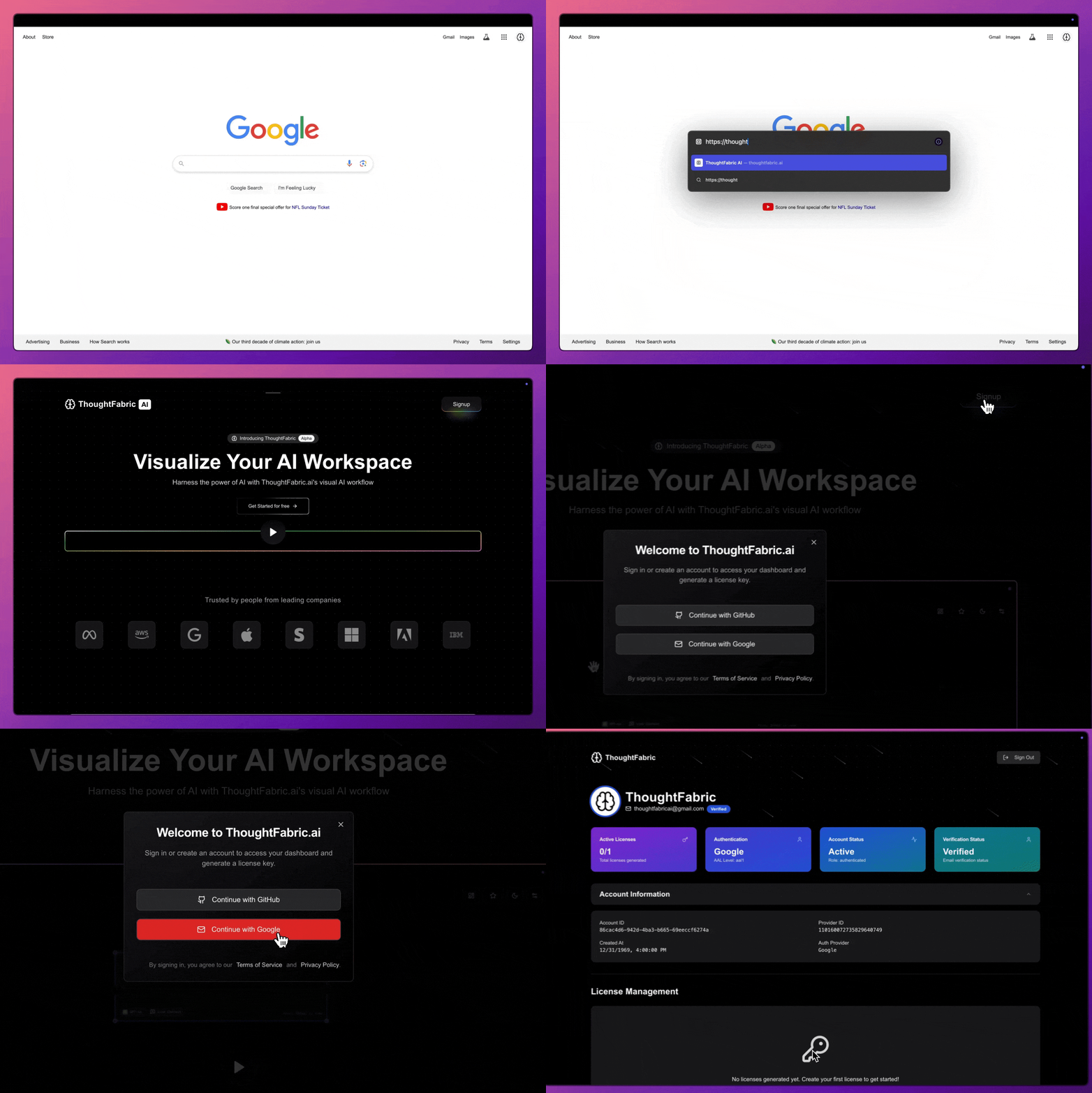
Steps
-
Visit the Website: Navigate to thoughtfabric.ai in your web browser to access the ThoughtFabric homepage.
-
Find the Signup Button: Look for the "Signup" button in the top right corner of the homepage.
-
Choose Authentication Method: Select your preferred sign-up option:
- Continue with GitHub - Quick authentication with your GitHub account
- Continue with Google - Seamless login with your Google account
-
Access Your Dashboard: After authentication, you'll be redirected to your ThoughtFabric dashboard at thoughtfabric.ai/dashboard.
2. Installing ThoughtFabric on Mac
System Requirements
ThoughtFabric currently supports:
- ✅ Apple Silicon Macs (M1, M2, M3 series)
- ✅ Intel-based MacBooks
Coming Soon: Windows (.exe) and Linux (.tar.gz) support is under development.
Installation Steps
-
Download the Installer: From the Download ThoughtFabric section, select the appropriate
.dmgfile for your Mac. -
Install the Application:
- Locate the downloaded
.dmgfile in your Downloads folder - Double-click to open the installer
- Drag the ThoughtFabric app icon into your Applications folder
- Locate the downloaded
-
Security Configuration: Since ThoughtFabric is currently in beta and not signed with an Apple certificate, you'll need to complete an additional security step:
This command bypasses macOS security restrictions for unsigned applications. Future releases will be code-signed and available through the App Store.
3. Generating Your License Key
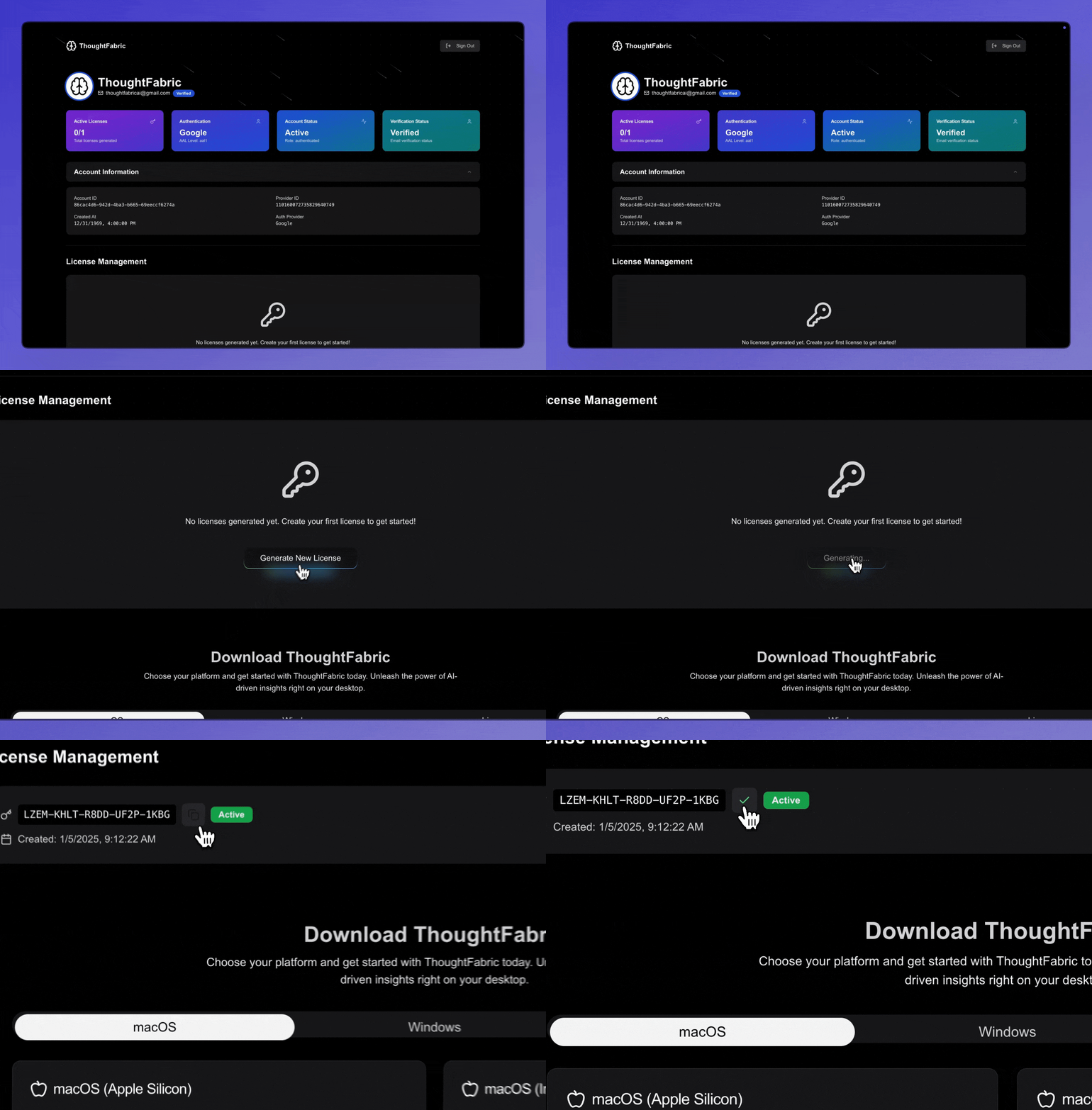
Steps
-
Access License Management: Navigate to the License Management section in your ThoughtFabric dashboard.
-
Generate New License: Click the "Generate New License" button to create your unique device-specific license key.
-
Copy Your Key: The system will instantly generate a new license key. Copy this key as you'll need it for the next step.
Important: Each license key is tied to a single device and cannot be transferred between machines.
Next Steps
Once you've completed the download and setup process:
- Activate Your License: Use your generated license key to activate the application
- Complete Initial Setup: Configure your AI providers and preferences
- Start Creating: Begin exploring the infinite canvas
Getting Started
Continue with initial setup and onboarding
Infinite Canvas
Learn about your creative workspace
Need Help? If you encounter any issues during installation, check our troubleshooting guide or contact support through your dashboard.