Getting Started
Welcome to ThoughtFabric AI! This guide will walk you through the initial setup process, from activating your license to selecting your AI provider and creating your first canvas.
License Activation
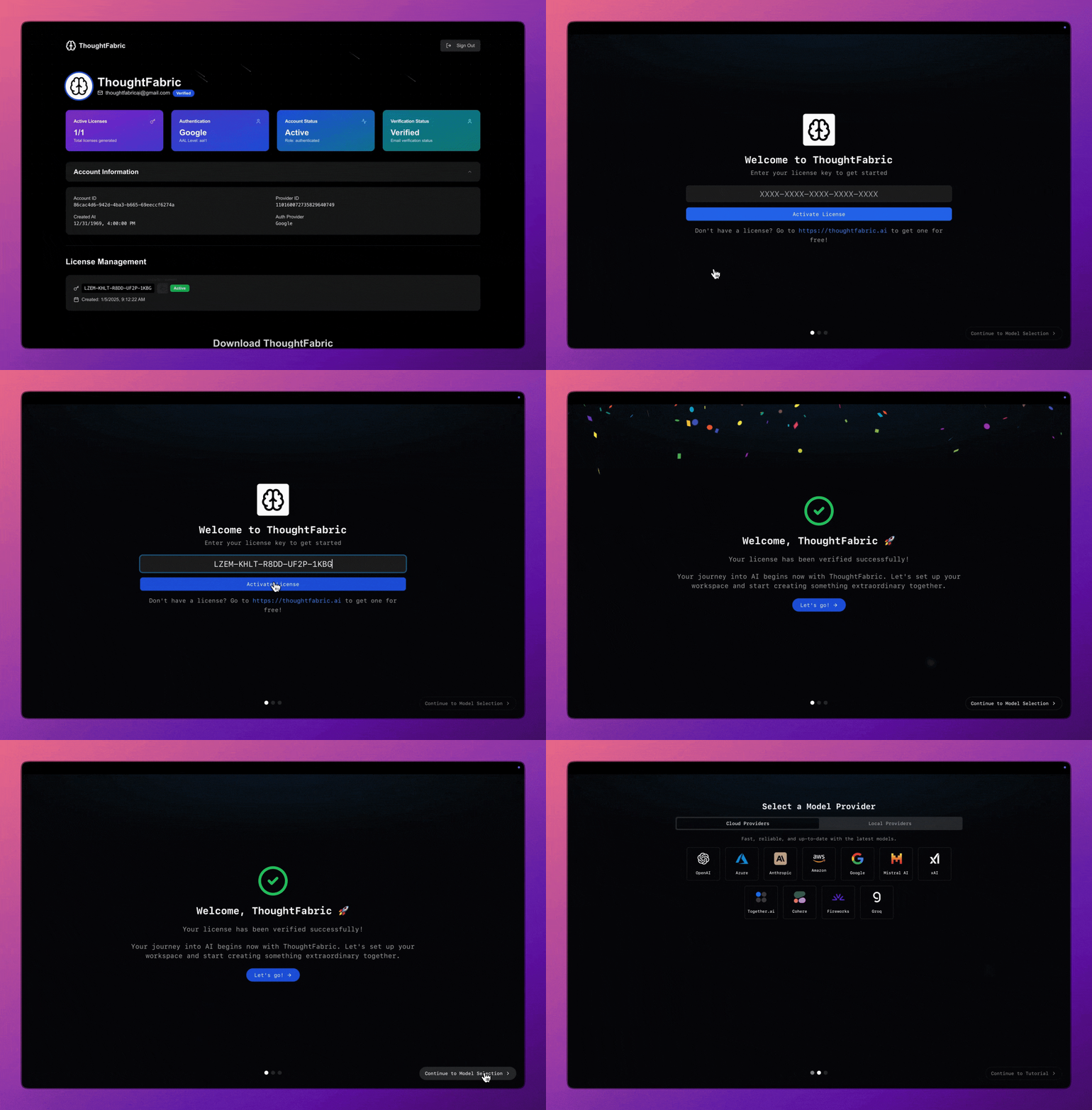
Steps
-
Welcome Screen: When you first open ThoughtFabric, you'll see a welcome page requiring license activation.
-
Enter License Key:
- Copy your license key from thoughtfabric.ai/dashboard
- Paste it into the welcome page
- Click "Activate License"
-
Complete Onboarding: After successful verification, you'll see an onboarding screen introducing ThoughtFabric's features.
-
Start Exploring: Click "Let's go! →" to begin using ThoughtFabric.
One-Time Setup: License activation is required only once per device. You won't need to repeat this unless you reinstall the application.
Choose Your AI Provider
ThoughtFabric supports two types of AI providers, each with unique advantages:
Cloud Providers
Fast, reliable, and up-to-date with the latest models.
Supported Providers
Supported Providers
- OpenAI - GPT models and ChatGPT
- xAI - Grok and advanced AI models
- Mistral AI - Open-source and commercial models
- Azure - Microsoft's AI platform
- Together.ai - Open-source model hosting
- Google - Gemini and PaLM models
- Anthropic - Claude AI models
- Cohere - Command and embed models
- Groq - High-speed inference
- AWS Bedrock - Amazon's AI platform
- Fireworks - Fast model inference
Setup Steps
- Select Provider: Choose your preferred AI provider from the available options
- Get API Key: Click "Get API Key" to visit the provider's platform and obtain your key
- Enter Key: Paste your API key and click "Save API Key"
- Review Models: Browse available models from your chosen provider
- Set Default: The first model becomes your default global model
- Continue: Click "Continue to Tutorial" to proceed
Free Options: Google, Mistral AI, and Groq offer API keys that work immediately without adding credits!
Local AI with Ollama
Privacy-first, secure, and runs entirely on your machine.
Setup Steps
- Install Ollama: Click "Install Ollama" and review system requirements
- Automatic Download: ThoughtFabric automatically downloads
llama3.2:3b(2GB model) - Test Connection: Use the text box to test your local model (try asking for a joke!)
- Set as Default: The local model becomes your default after successful testing
- Continue: Click "Continue to Tutorial" to proceed
Benefits of Local AI
- Cost-Effective: No API costs or subscriptions
- Privacy: Everything runs on your device
- Offline: Works without internet connection
- Fast: Quick responses after initial load
Magic of Offline AI: Your device becomes a powerful, private AI server that operates completely internet-free!
Welcome to Your AI Workspace
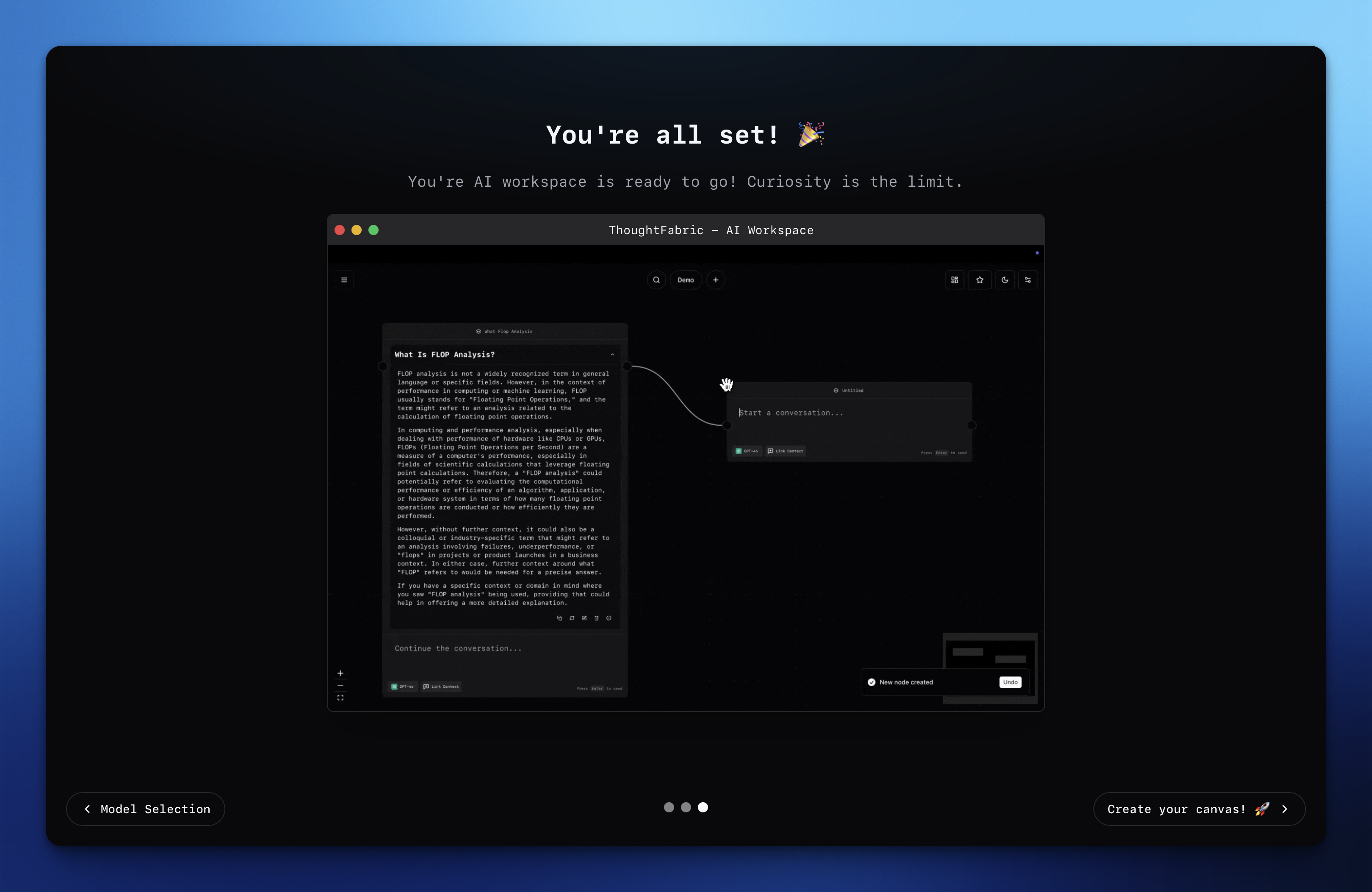
Congratulations! Your AI workspace is fully configured and ready for creativity.
Next Steps
- Watch Tutorial: Take a comprehensive walkthrough of ThoughtFabric's features
- Create Canvas: Click "Create your canvas" to start your creative journey
- Explore Features: Discover conversational threads, infinite canvas, and more
Infinite Canvas
Learn about your unlimited creative workspace
Conversational Threads
Master AI-powered conversations in visual format
Contexts
Understand context management and conversation flow
You're Ready! With ThoughtFabric AI, your curiosity is your only limit. Transform your ideas into reality with the power of AI and unlimited visual space.